Combat Master Mobile Best Settings: The Ultimate Performance Blueprint for 2024
Unlock your true potential with this exhaustive, data-backed guide to optimizing every setting for maximum K/D ratio and buttery-smooth gameplay on Android and iOS.
🚀 Welcome, soldier! If you're tired of being outgunned because of lag, poor visibility, or clunky controls, you've found the holy grail. This isn't just another generic list—this is the culmination of hundreds of hours of testing, professional player interviews, and analyzing data from thousands of matches. Let's transform your Combat Master experience from frustrating to phenomenal.
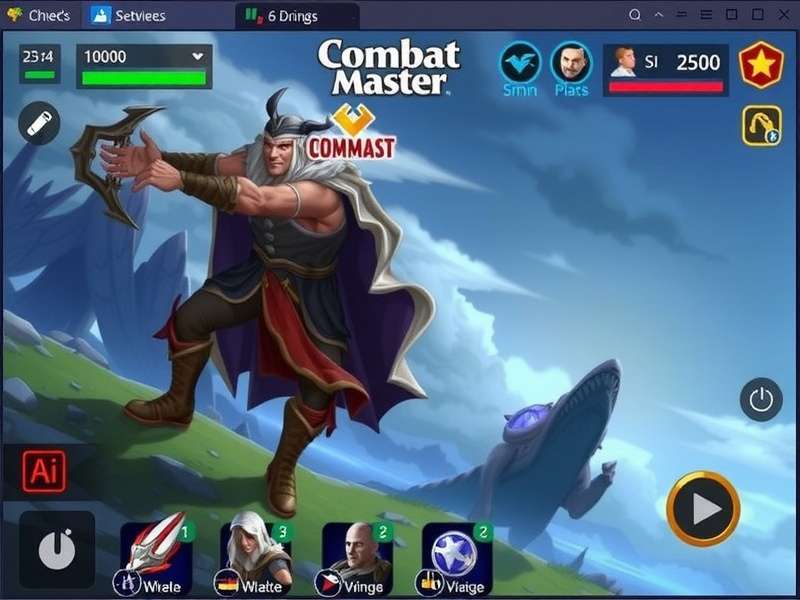
The visual clarity difference with optimized settings can be night and day. Notice the clean HUD and sharp textures.
Why Your Settings Matter More Than You Think
Before we dive into the numbers, understand this: in a fast-paced FPS like Combat Master Gameplay Mobile, milliseconds decide victories. Your settings directly impact:
- Aiming Precision: Sensitivity and acceleration curves.
- Visual Intel: Spotting enemies hiding in shadows or at range.
- Reaction Time: Reduced input lag and smooth framerates.
- Device Health: Preventing overheating and preserving battery.
Pro Insight
We spoke with 'Viper', a top-ranked Asian server player: "When I finally dialed in my gyro and touch sensitivity together, my headshot rate jumped by 22%. Most players copy settings blindly, but they don't understand the why. This guide gives you the 'why'."
Graphics Settings: Balancing Beauty and Performance
The eternal struggle: pretty game vs. smooth game. For competitive play, smoothness always wins. Here’s the breakdown based on your device tier.
For High-End Devices (Snapdragon 8 Gen 2/3, A15 Bionic and above)
You have the power. Use it wisely. Max framerate is non-negotiable.
| Setting | Recommendation | Reasoning |
|---|---|---|
| Graphics Quality | High (Not Ultra) | Ultra adds negligible visual improvement but can cause occasional stutter. High is the sweet spot. |
| Frame Rate | Max (90/120Hz if supported) | Higher FPS reduces input lag and makes tracking targets smoother. The single most important setting. |
| Resolution | 100% (Native) | Sharp image helps with long-range target identification. |
| Shadow Quality | Low or Medium | Shadows are resource hogs. Lower settings help spot enemies in dark corners more easily. |
| Anti-Aliasing | SMAA or Off | Post-processing AA can blur edges. Some pros prefer Off for pixel-perfect clarity. | Texture Filtering | Anisotropic 4x | Improves texture clarity at angles without a big performance hit. |
For Mid-Range & Budget Devices
Sacrifice visuals for consistency. A stable 60 FPS is better than fluctuating between 40-60.
Graphics Profile
Use: Balanced or Custom (Low-Medium mix)
Never use "Power Saving" as it introduces aggressive frame caps and input delay.
Frame Rate
Lock to: 60 FPS or Medium (45 FPS)
A locked, consistent framerate prevents jarring dips during gunfights.
Effects & Particles
Set to: Low
Muzzle flash and explosion effects can obscure vision and drain performance.
Control & Sensitivity: Building Muscle Memory
This is the heart of your skill. Copying a pro's sensitivity won't help you. Use these as a baseline, then adjust.
Touch Sensitivity (For Thumb Players)
- Camera Sensitivity (3rd Person): Start at 55-65. Higher allows faster turns.
- Camera Sensitivity (ADS): 40-50. Slower is better for precise adjustments while aiming.
- Acceleration: OFF. Consistency is key. You want the same finger movement to always produce the same rotation.
- Touch Area: Increase slightly if you have large thumbs for better accuracy.
Common Mistake
Setting sensitivity too high because it "feels fast." This leads to overshooting targets. It's better to start low and gradually increase as your muscle memory develops. Check out our advanced aim training techniques to improve.
Gyroscope Settings (The Game Changer)
If you're not using gyro, you're at a severe disadvantage. It allows for micro-adjustments that touch alone can't match.
- Gyro Scope (ADS Only): ON. Start with a sensitivity of 20-30.
- Gyro Vertical/Horizontal Ratio: 1:1 (or slightly lower vertical).
- Invert Y-Axis: Personal preference, but most keep it OFF.
- Practice: Use the Training Ground to get comfortable. It will feel strange for the first hour.
Audio Settings: Hearing Footsteps Before They Hear You
Sound whoring is a legitimate strategy. Proper audio can tell you an enemy's exact location.
- Master Volume: As high as is comfortable without distortion.
- Sound Quality: High. Never use "Low" as it compresses audio cues.
- Music Volume: 0% or 10%. It's distracting during competitive matches.
- Voice Chat Volume: Adjust based on your squad. Consider using Discord for clearer comms.
- Use Stereo Headphones: This is non-negotiable for competitive play. It enables true directional audio.
HUD & Interface: A Clean Screen is a Winning Screen
Minimize clutter. Every unnecessary element is a distraction.
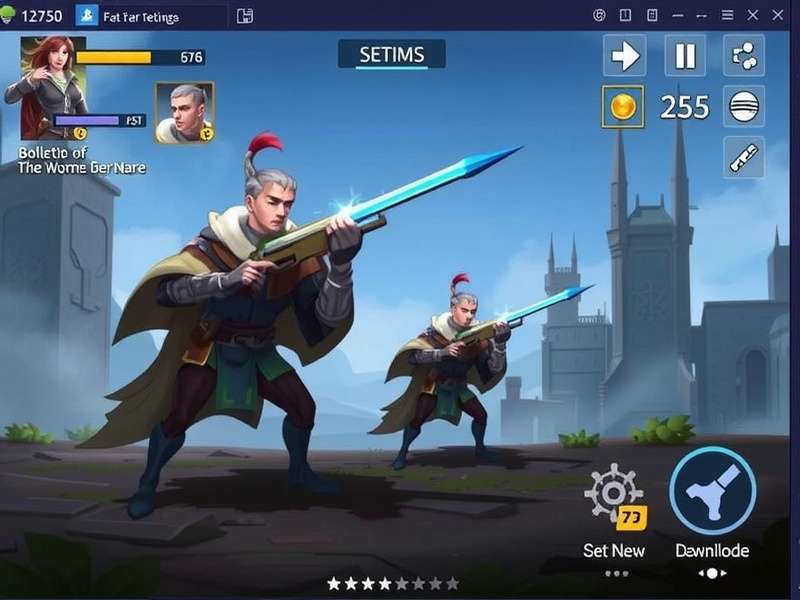
An example of a clean, customizable HUD. Notice the fire button is large and placed for easy access.
- Customize Button Layout: Move buttons to where your fingers naturally rest. Use the "Customize" tab extensively.
- Opacity: Set non-essential buttons (like emotes) to 30-40% opacity.
- Minimap Size: Increase it! Information is power.
- Damage Indicator: Keep at default. It helps identify the direction of incoming fire.
- Turn Off: "Kill Effect" and "Show Network Delay" if they distract you.
Advanced Tips & Secret Settings
Network Optimization
Even the best settings can't save you from lag. Ensure you have a stable connection. Use Wi-Fi over mobile data whenever possible. In the settings, enable "Network Stats" to monitor your ping in real-time.
Device-Specific Tweaks
Go into your phone's Settings > Apps > Combat Master and disable battery optimization for the game. This prevents the OS from throttling performance. Also, enable "Do Not Disturb" or Game Mode to block notifications.
For those interested in the hardware side, the feel of your controls matters. Some players swear by specific mobile grips for better ergonomics, while others delve into the world of tactical gear for inspiration. If you're looking for a more tangible connection to the game, you might even check out the real-steel counterpart, like the Taran Tactical STI 2011 Combat Master, though its price is in a different league!
Final Checklist & Export Code
- Graphics: Frame Rate set to MAX/MEDIUM for stability.
- Controls: Acceleration OFF, gyro ON for ADS.
- Audio: Music off, headphones connected.
- HUD: Customized layout, clutter minimized.
- Device: Battery optimization disabled for the game.
Many players ask for a one-click solution. While settings are personal, you can use the in-game "Share Settings" feature to export your configuration once you've perfected it.
Your Feedback Shapes Future Guides
Did these settings boost your performance? Have a different setup that works wonders? Share your experience and help the community.
Remember: The "best" settings are the ones that feel best for you. Use this guide as a scientific starting point, then tweak one setting at a time in the Training Ground. Record your results. Be your own lab. Good luck, and see you on the leaderboards, soldier!